

COMPASS Operations Training
Lesson 3: Navigating around a regulation
In this lesson, you are going to learn how to navigate around the information of a specific regulation.
Key Takeaways:
- What are the 8 different types of functions available for regulations
- How to use the Admin function within a regulation
- How to use the Clauses Compliance function and the Legislation, ACOP, Rationale, Duties, Evidence and Justification options found within the Clauses Compliance
- What differentiates the global compliance function and how to use it
- How to use the Documents, Links, Linked Tracker Items, Authority Contacts and History Functions
- How to use the see full legislation option
If you have any questions, regarding this training program, you can always contact us using our contact form or by emailing us to info@westoncompliance.com
(0:15)
1) For the purpose of this session, we are going to use the SI 1992/2966 The Personal Protective Equipment At Work Regulations as an example.

(0:22)
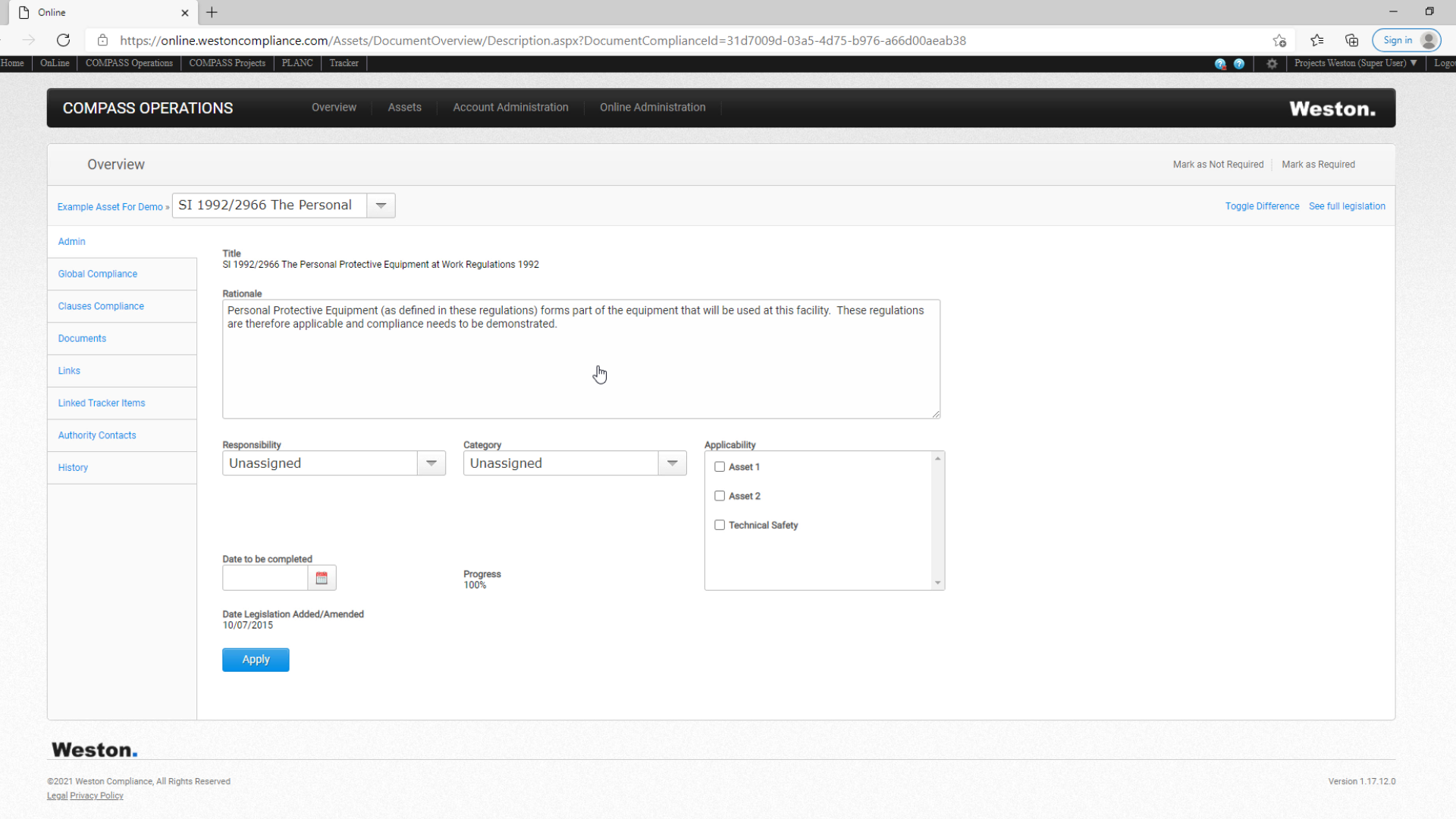
2) Clicking on a regulation title automatcally opens the Admin page within that regulation.
(0:28)
3) In the admin page we can see the rationale as to why that particular regulation applies.

(0:34)
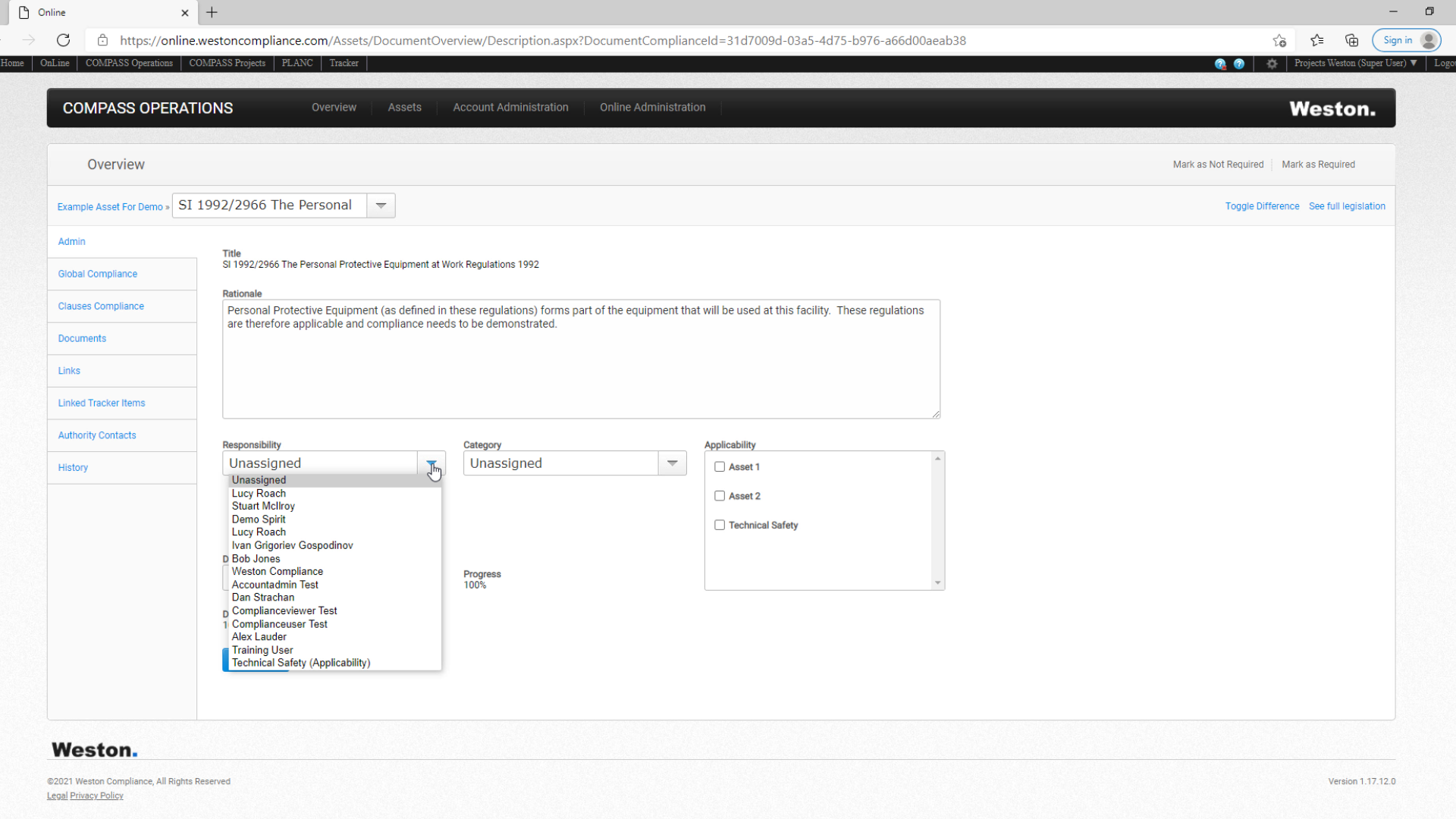
4) On this screen you can assign a responsible person under "Responsibility";
(0:39)
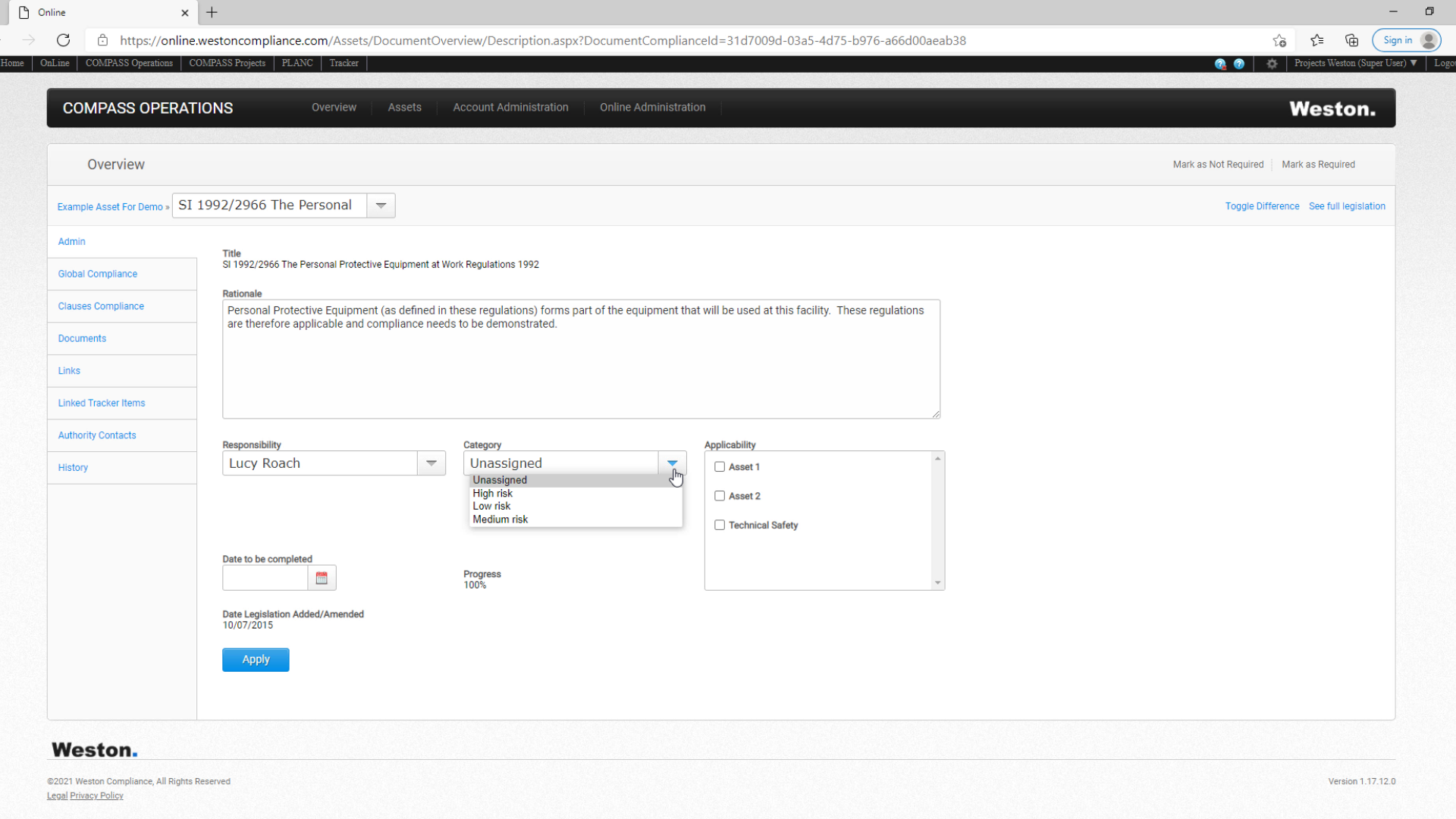
5) Categorise the regulation under "Category", in this example giving the item a specifc level of risk;
(0:45)
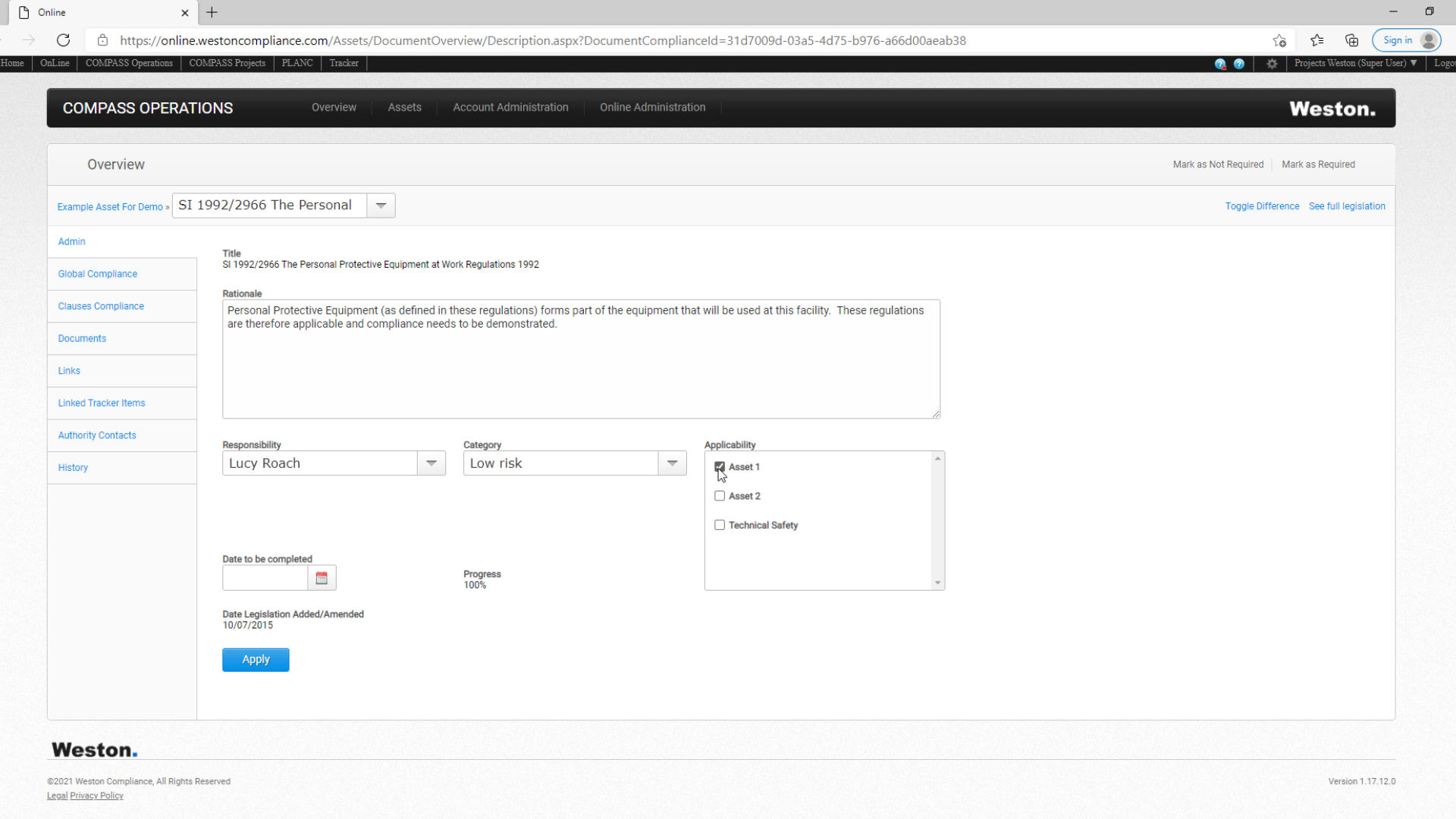
6) Text regarding Applicability;
(0:48)
7) And set a desired completon date. All of these options are customisable for users. If a user wishes to create custom functions for their admin page, they will need to contact their COMPASS Operations account administrator.

(1:04)
8) You must click the Apply button to save any changes made.

(1:16)
9) Within each regulation there are 8 different functions available. They are accessed by the tabs on the left-hand side of screen.

(1:27)
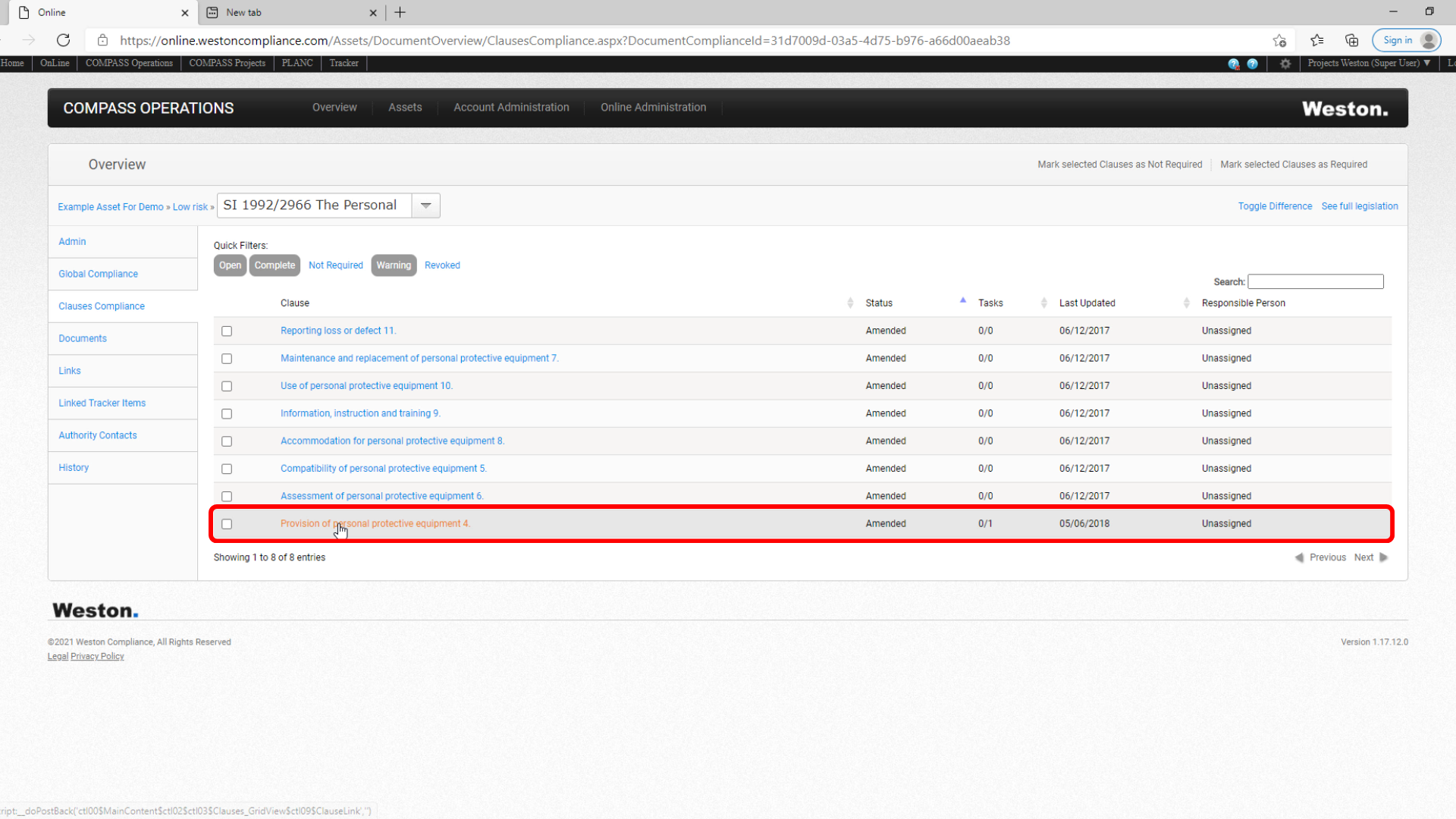
10) We'll go first into the Clauses Compliance function, as this is the one most frequently used.

(1:33)
11) This function allows you to view the full list of legislative Clauses contained within that Regulation.

(1:40)
12) Clicking on a Clause takes you into that particular Clause.
(1:44)
13) Within each clause you can find the following information:

(1:47)
14) Legislation shows us the full text from this legislative Clause, which in this case is Clause 4 Proision of personal protective equipment.

(1:57)
15) For Non-UK legislation, the user has the option to view the clause in their native language under the standard Legislation tab. In our example, the legislation is displayed in Danish.

(2:10)
16) The user can also use the "Translated Legislation" tab where the clause can be viewed in English.

(2:19)
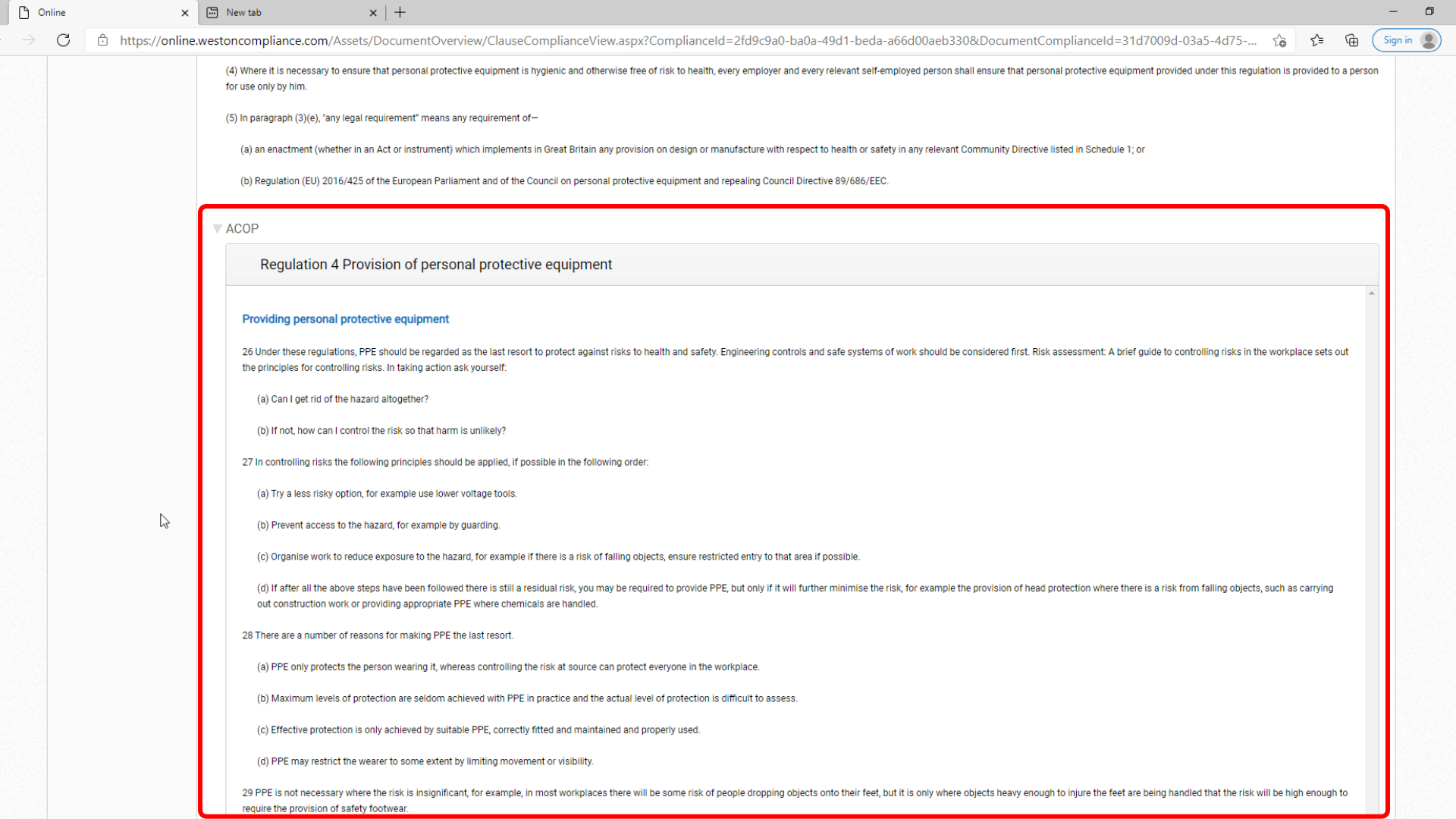
17) If there is an Approved Code of Practice (ACOP), associated with the regulation, you will see an extract relating to this particular Clause under the ACOP tab.
(2:30)
18) Rationale has a high-level statement as to why that particular regulation applies.

(2:35)
19) Duties - a particular statement on what must be done by the employer or duty holder to ensure cmpliance.

(2:42)
20) Evidence - evidence on how your organisation complies with this legislative clause. Typically, this will include reference to a document procedure or procedures from your organisation's management system. In our example, there is reference made to this particular protective equipment standard.

(3:03)
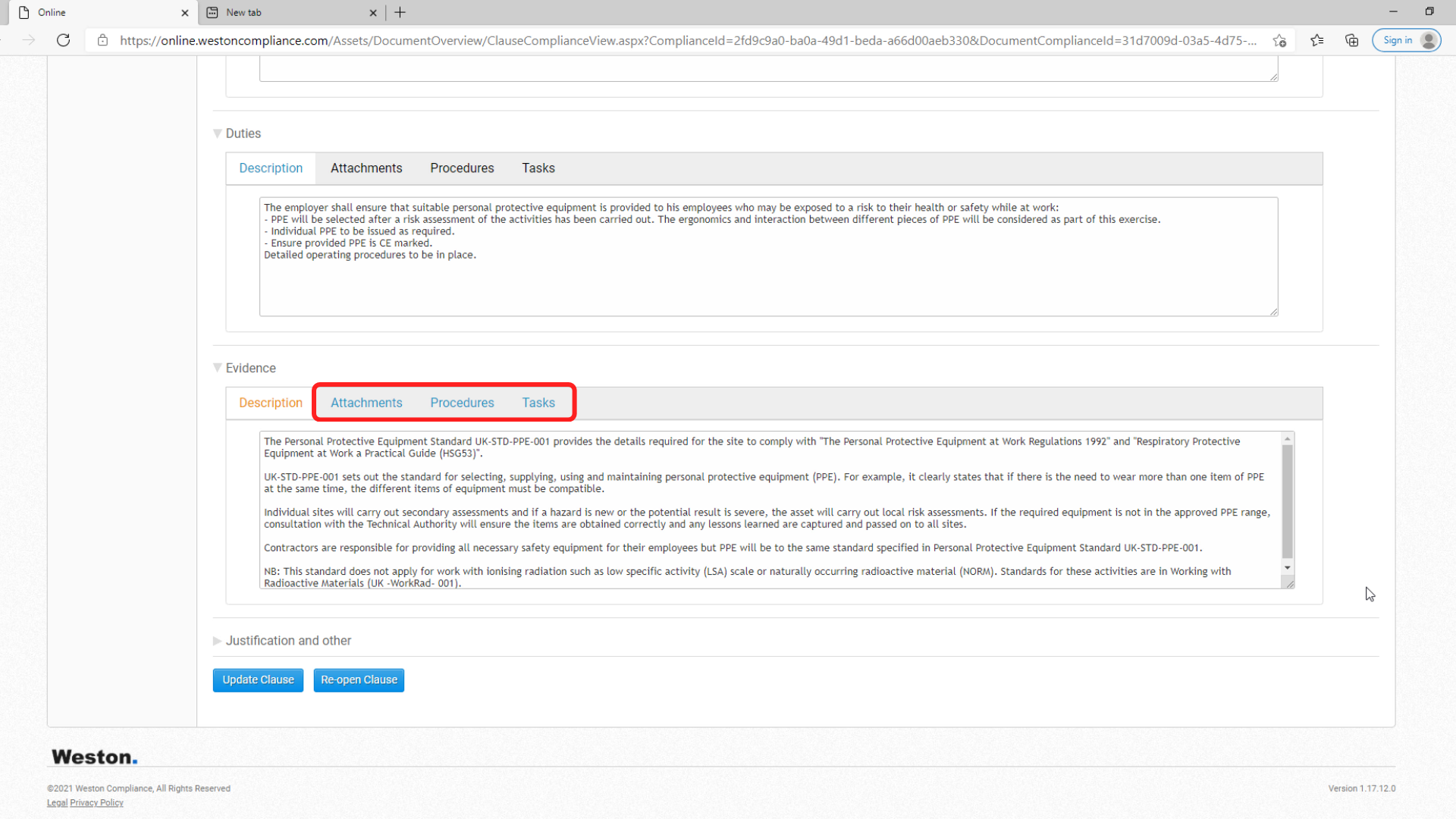
21) There are 3 additional tabs within the Evidence function that can be used. These are Attachments, Procedures, and Tasks.
(3:14)
22) Under Attachments, the user can add references such as guidance or standards.

(3:20)
23) Under the Procedures tab, applicable procedures can be listed. In our example, we have two procedures that have been tagged.

(3:36)
24) Lastly, we have the Tasks tab. This is where any associated tasks can be logged using the Tracker tool.

(3:51)
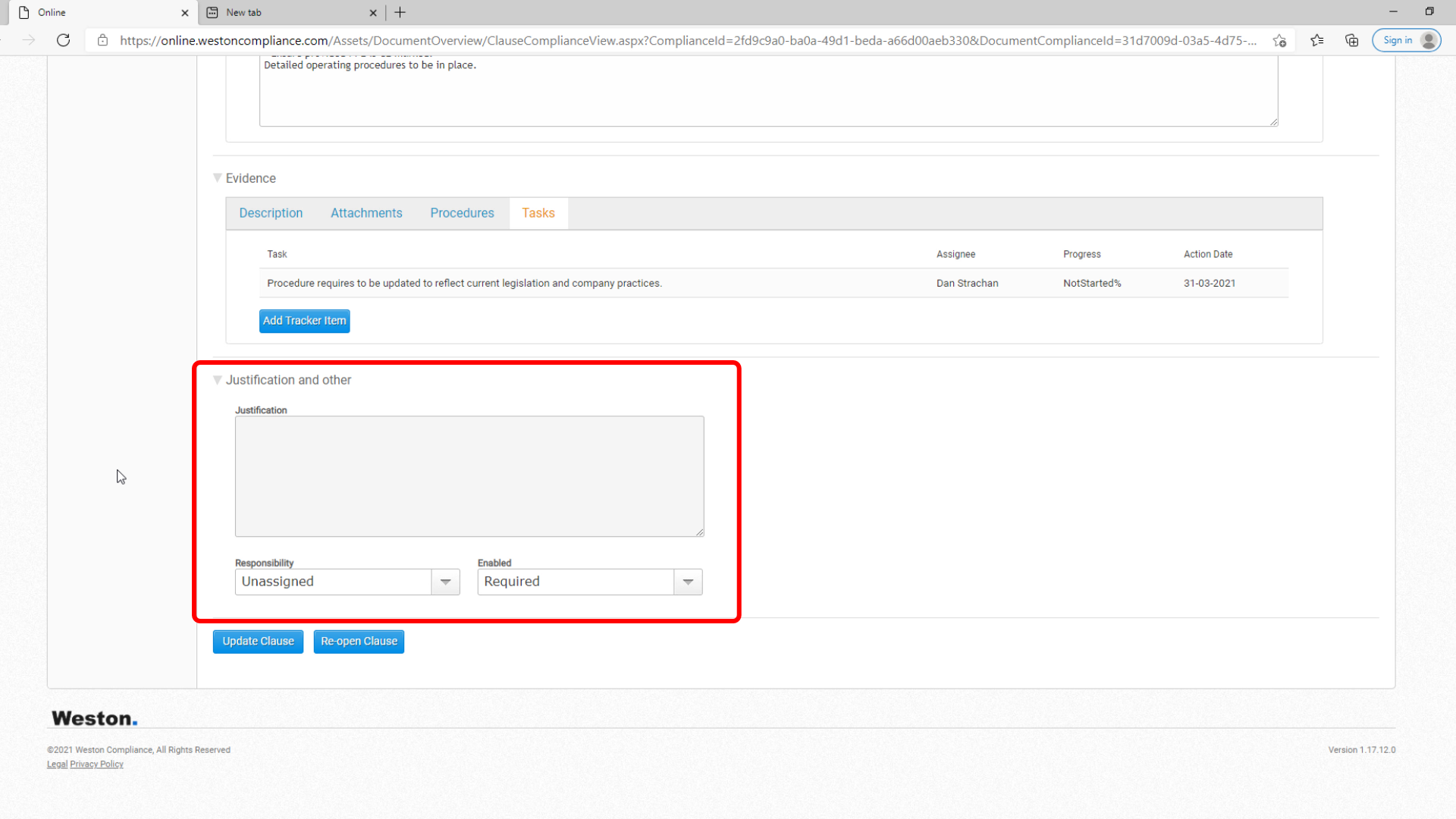
25) At the very bottom of the Clauses Compliance screen, the "Justification and other" function allows you to mark a Clause as Not Required in cases where it is considered to be irrelevant to your organisation's asset or acitivites.
(4:04)
26) Select Not Required from the drop down menu here and then insert the justification as to why this is the case.

(4:11)
27) The Update Clause button at the bottom of the screen allows you to save all of the changes made to the clause into the system.

(4:19)
28) The Re-open functions allows a Clause that has been previously marked as Complete to be re-opened.

(4:28)
29) We will now take a look at the remaining functions available within a regulation, starting with Global Compliance.

(4:37)
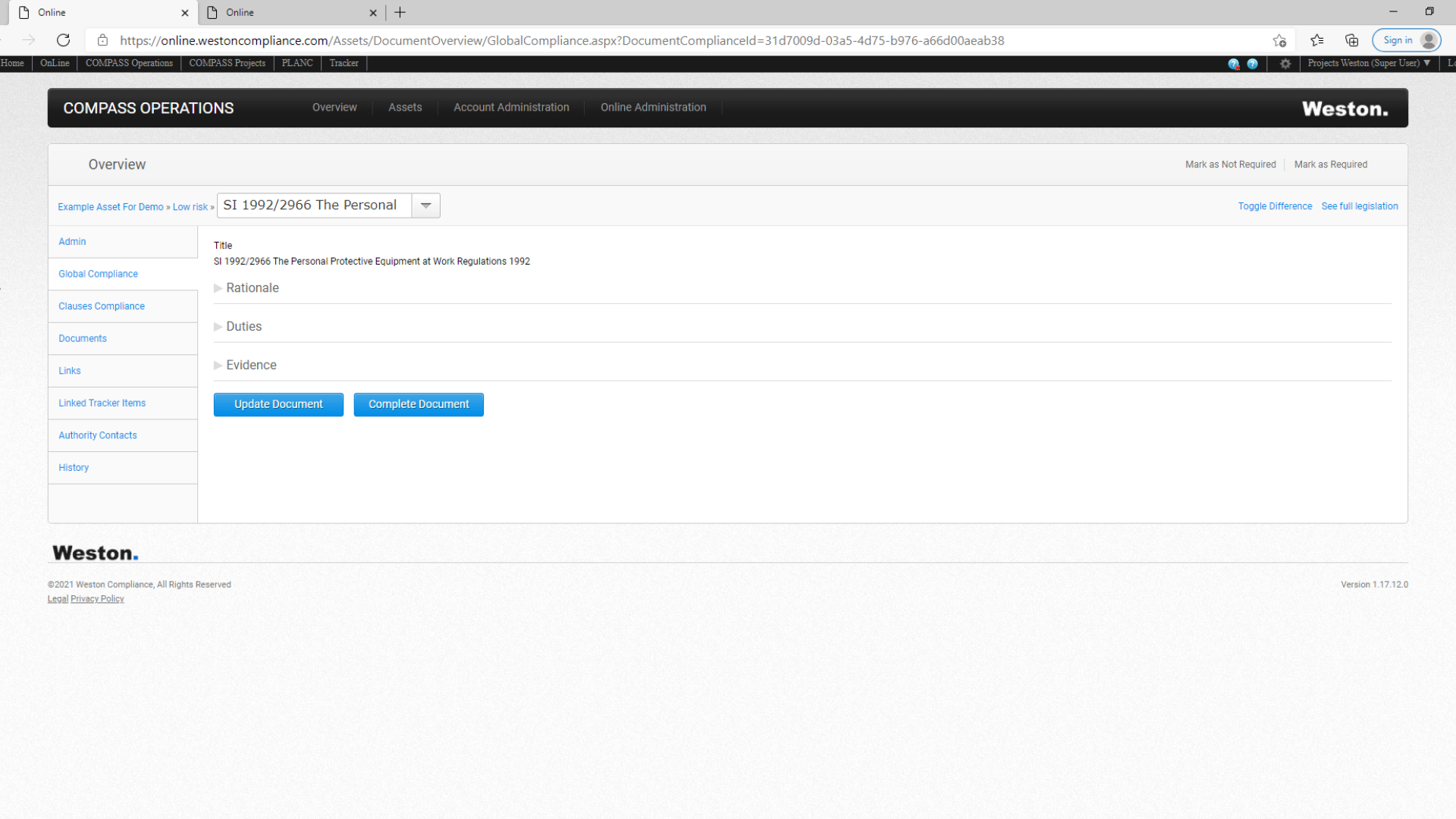
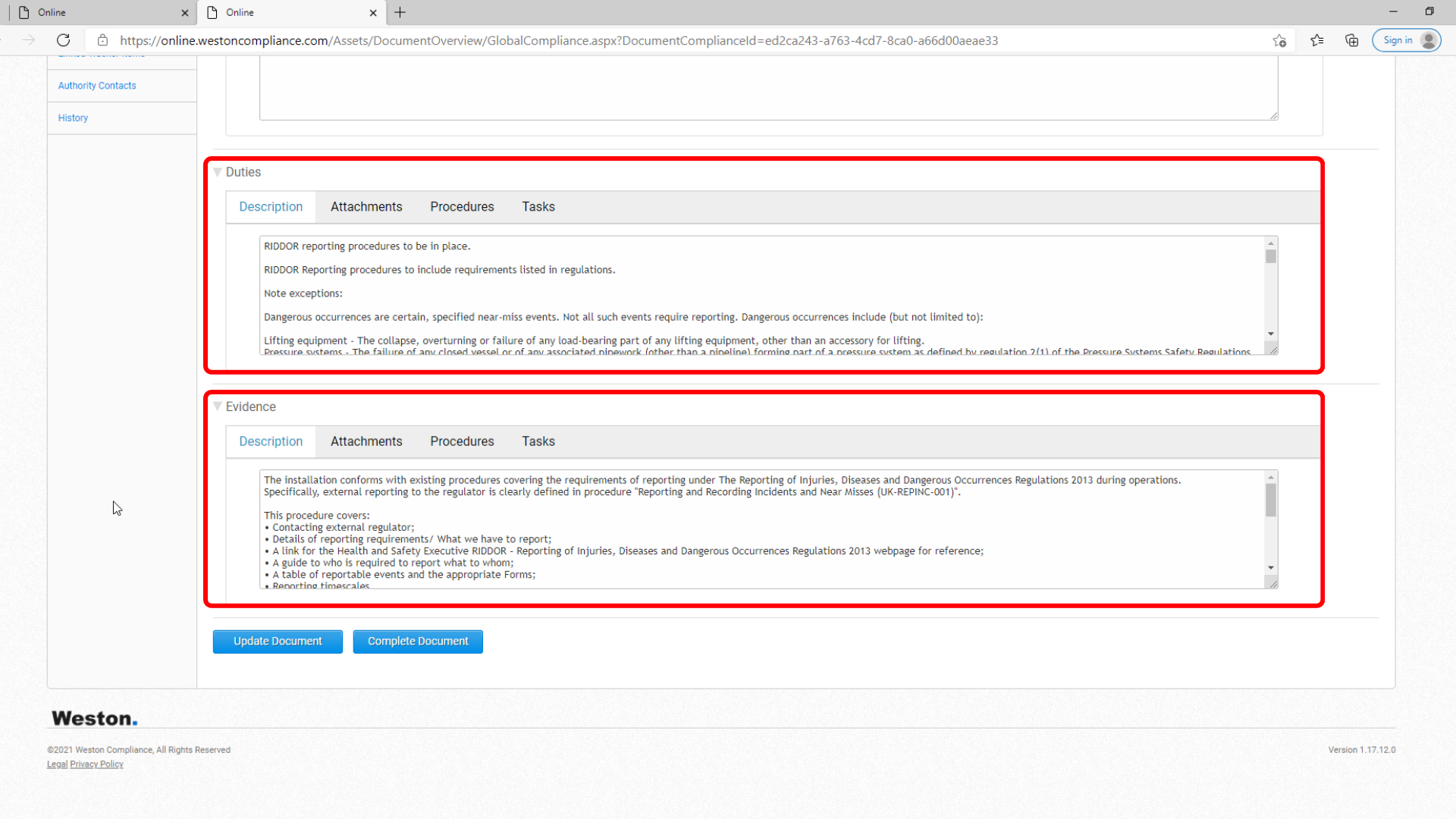
30) The Global Compliance Function allows you to set Duties and Evidence at a global level, that is for the entire regulation, rather than clause by clause.
(4:48)
31) Typically, Global Compliance is used to address less-complex legislation which can be evidenced by a single procedure or process, such as this example SI 2013/1471 The Reporting of Injuries, Deseases and Dangerous Occurrences Regulations which has been addressed by a single procedure.

(5:08)
32) In this example, the duties and evidence have been set at a global level.
(5:16)
33) Next, we have the Documents function.

(5:19)
34) It allows you to see any documents or procedures which have been attached as Evidence of compliance across all the clauses in the regulation.

(5:28)
35) The Links function provides an option to link to an external source.

(5:32)
36) For example, to guidance on a regulator's web page or to a specific URL location in the Weston OnLine database. Often, this is used to link to additional useful detail cited in regulatory Annexes or Schedules. In our example, we have attached a URL to the HSE RIDDOR guidance.

(5:54)
37) Next is the Linked Tracker Items.

(5:57)
38) Which allows you to view actions raised in the Tracker system against this piece of legislation.

(6:09)
39) Authority Contacts allows you to add details of your regulatory authority contacts.

(6:16)
40) Lastly, the History function provides a user with a log changes made.

(6:20)
41) Items are sorted by responsible person;

(6:24)
42) and date;

(6:26)
43) You may also have noticed the See Full Legislation button which is visible on all the screens within a regulation.

(6:34)
44) Clicking here opens the full legislative text in Weston OnLine in a new window.

Here the button that leads to the Codify training platform can be place
Something like this: