

COMPASS Operations Training
Lesson 2: Understanding the COMPASS Overview screen
In this lesson, you are going to learn how to use the COMPASS Overview screen.
Key Takeaways:
- What is the COMPASS Overview screen
- How to use the quick filters function
- How to find legislation justification for removal
- How to use the show/hide column function
- How to discount legislation from the register or bring back items that have been previously marked as "Not required"
- How to sort the overview screen table
- How to use the search function
If you have any questions, regarding this training program, you can always contact us using our contact form or by emailing us to info@westoncompliance.com
(0:07)
1) The COMPASS Overview screen is the main dashboard that you see when using the COMPASS Operations platform.

(0:14)
2) Here you can see a full list of relevant legislative items - Acts, Statutory Instruments and EU Regulations - that apply to your organisation.

(0:25)
3) The columns titled "Has rationale" and "Has Duties" become green when these details are entered into the register.

(0:34)
4) The column headed Complete becomes green when Evidence of Compliance is entered and committed to the system.

(0:46)
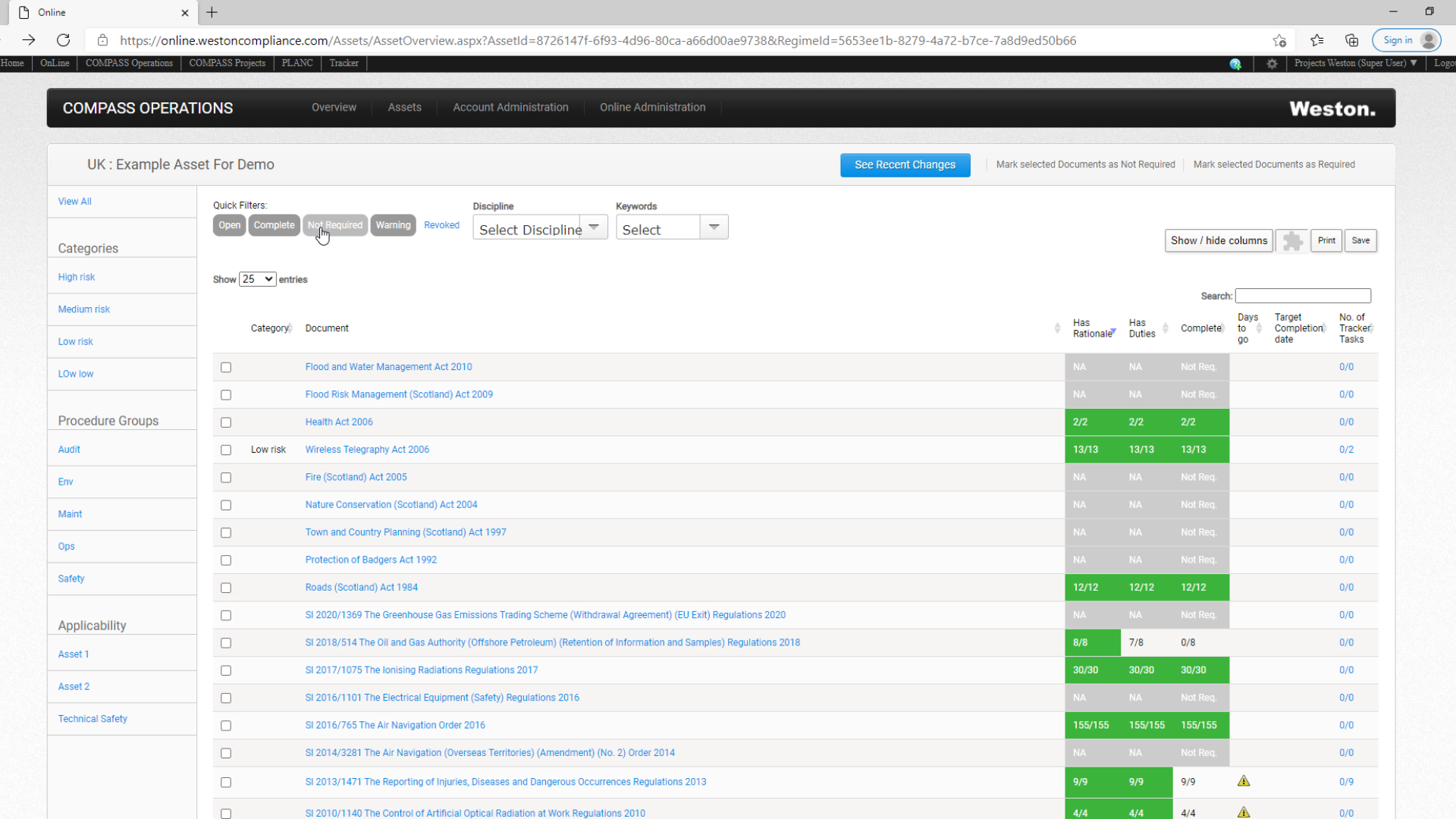
5) The quick filters are used to see legislation which has been marked as "Not Required".

(0:46)
6) After clicking the not required button the system will show the user all the pieces of legislation that have been discounted from the register.
(1:03)
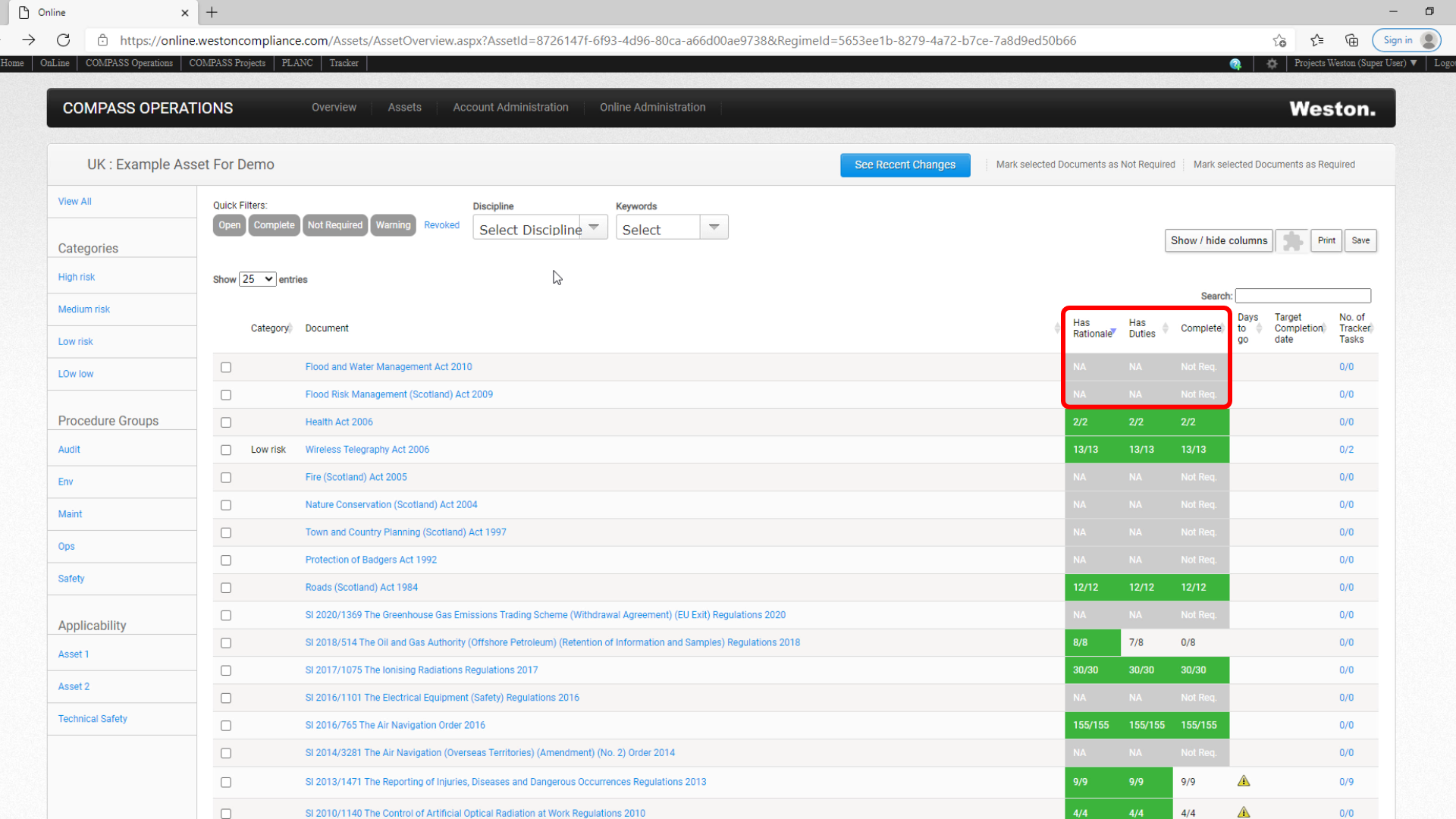
7) As a visual signal, the rationale, duties and complete columns of such legislation are coloured in grey.
(1:10)
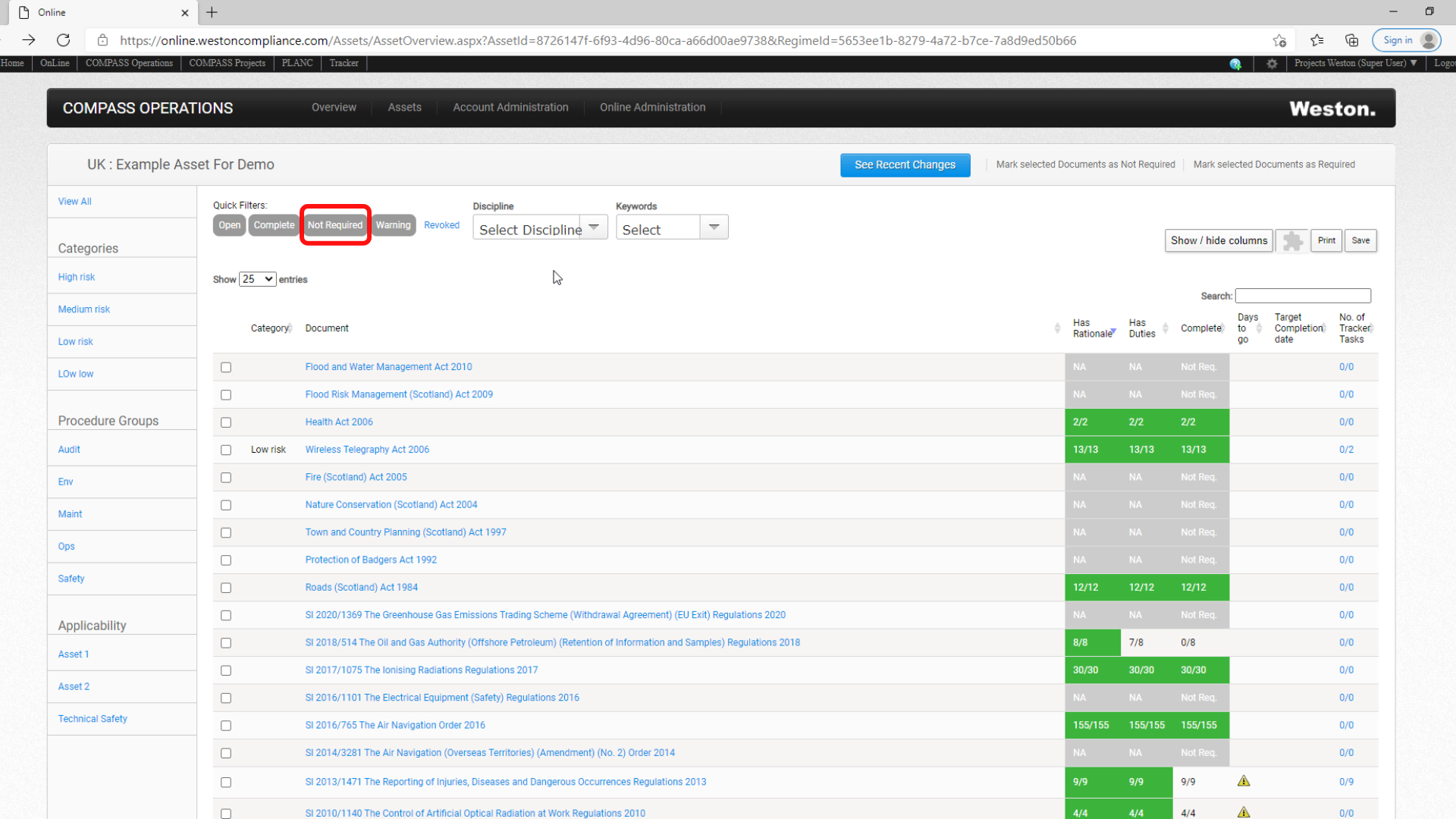
8) Whenever the Not Required filter is active the button is also highlighted in a grey colour.
(1:17)
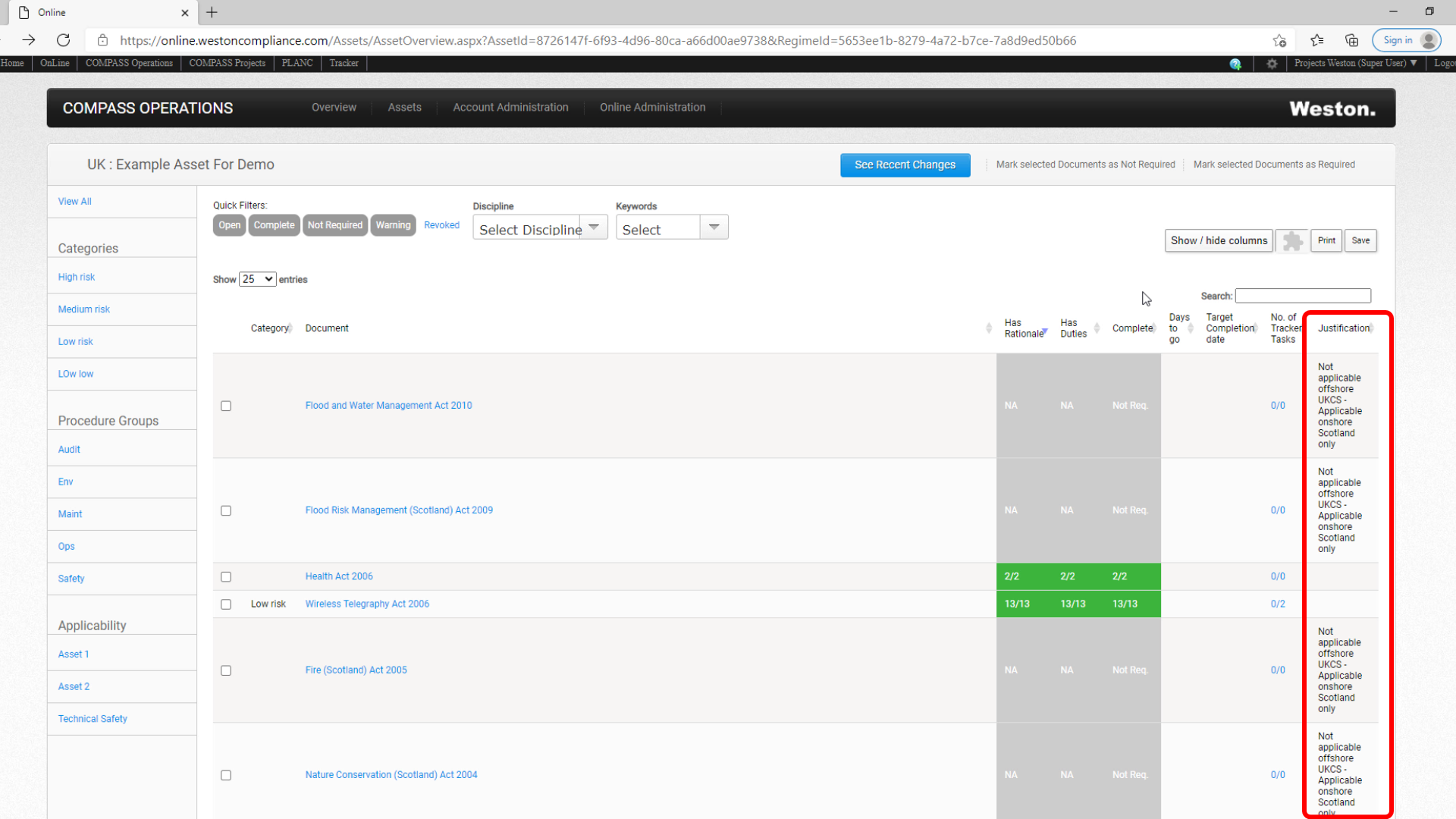
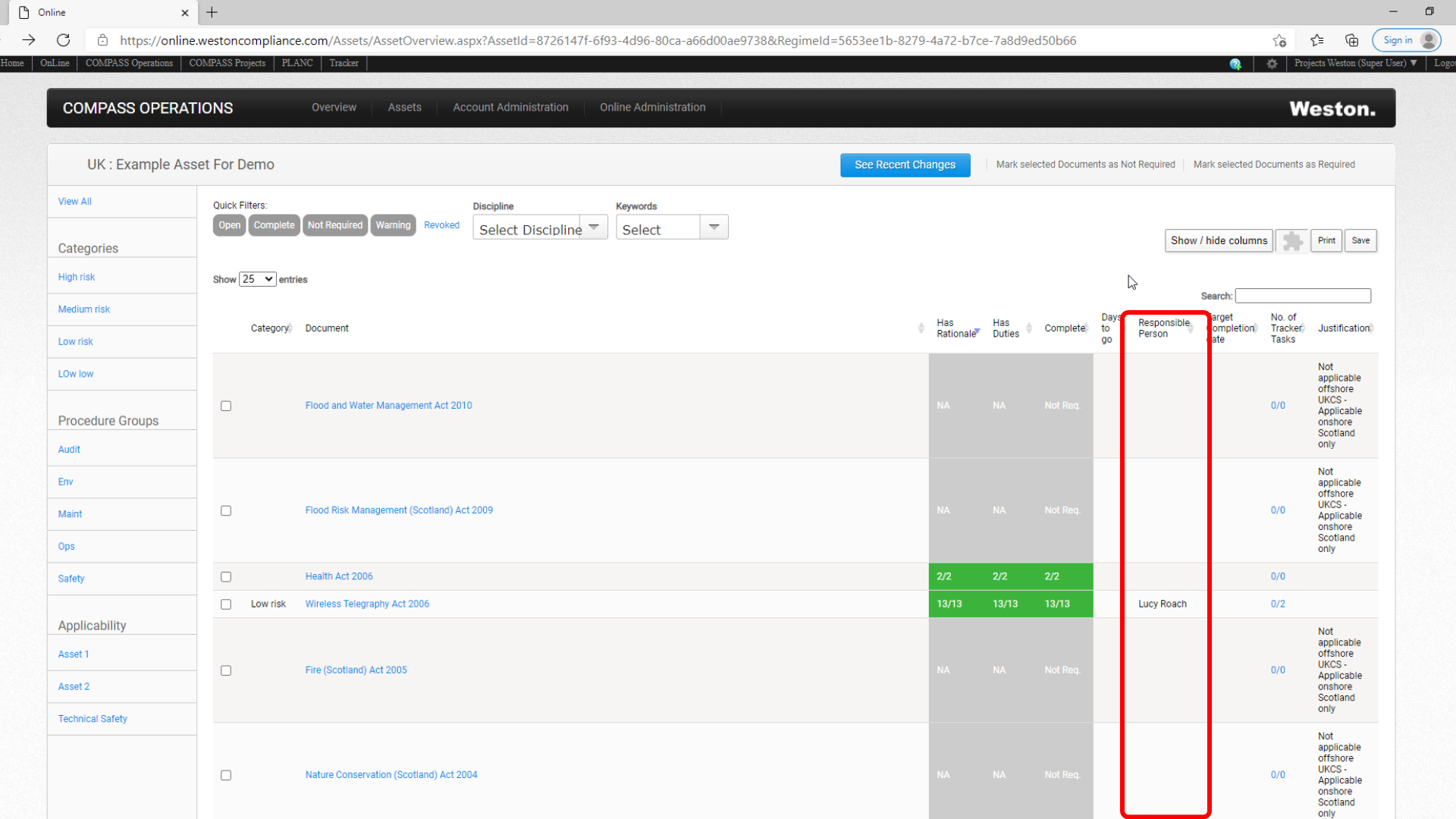
9) You can then use the Show/Hide Columns function to review the Justification as to why a particular regulation has been deemed not to be relevant.

(1:27)
10) To do so, select the "Justification" option from the drop down menu.

(1:34)
11) This will prompt another column to appear on the overview screen titled "Justification", where an explanation as to why a particular regulation has been discounted from the registe, is provided.
(1:48)
12) The Show/Hide Columns function also allows you to select the particular information that you wish to see on the COMPASS Overview screen.

(1:56)
13) For example, if you want to see the responsible person against each legislation listed. You can do so by ticking the "Responsible Person" option from the drop down menu.

(2:05)
(2:11)
14) The Mark Selected Documents as Not Required and the Mark Selected Documents as Required function allows you to remove legislation that is not relevant to your organisation's assets or activities. Or to bring back into the live register any item that has been marked as "Not Required".

(2:28)
15) To do this, you check the box in the left-hand column against the legislation of choice.

(2:34)
16) Then click "Mark Selected Documents as Not Required" and the item is removed from the register.

(2:41)
17) When you are labelling documents as being not required and discounting them from the register, the system always prompts the user to put in a not required justification.

(2:53)
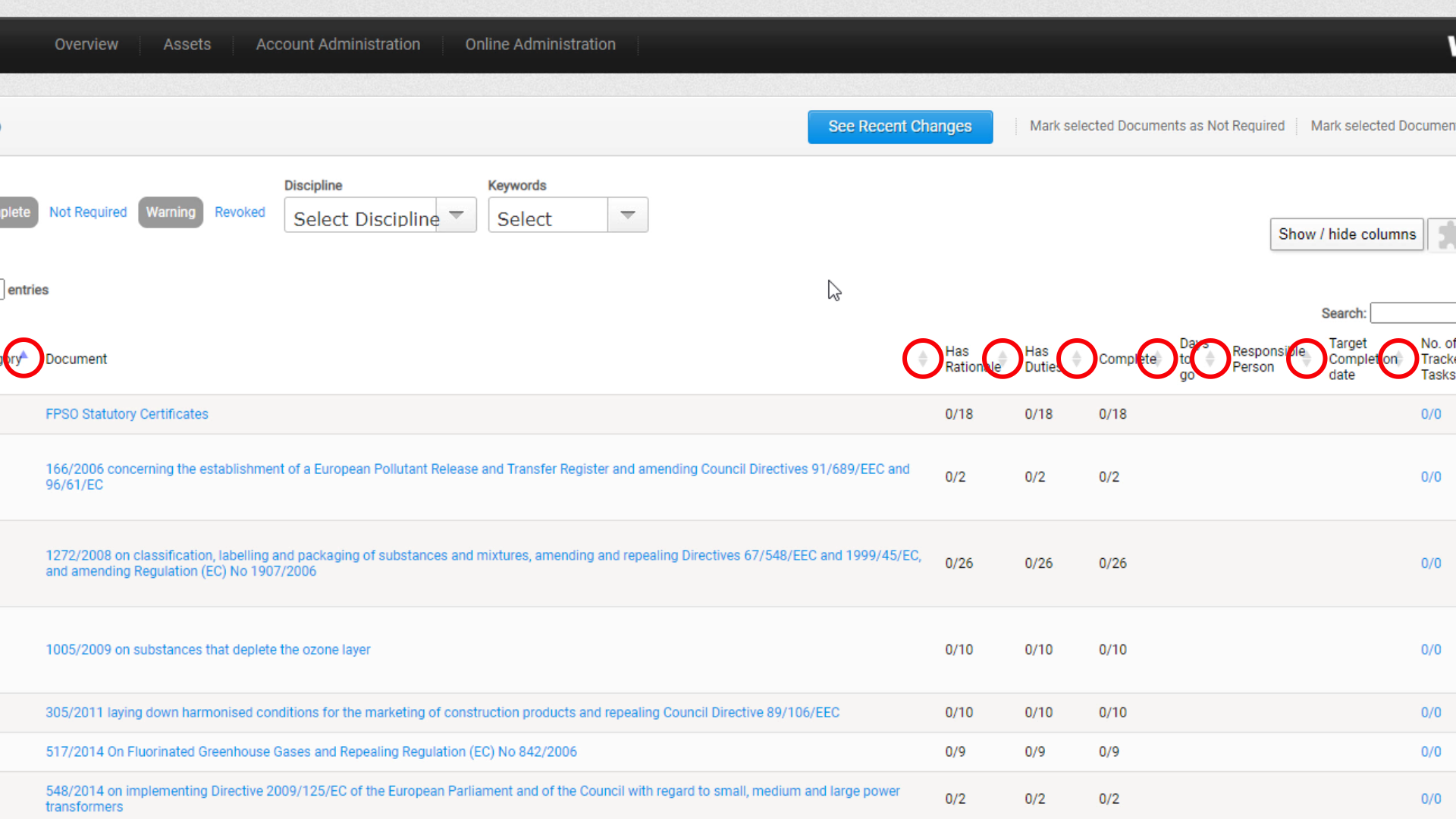
18) The grey triangles to the right of the column headers can be used to sort the information displayed. This allows the user to decide what is displayed first in the Overview screen.
(3:05)
19) For example, if you wanted to sort the list so that legislations that have all of their rationale entered into the database appear at the top, you can do so by clicking the grey arrow next to the column "Has Rationale".

(3:25)
20) When a specific sorting option is chosen and an arrow is clicked that arrow is now highlighted in a purple colour.

(3:37)
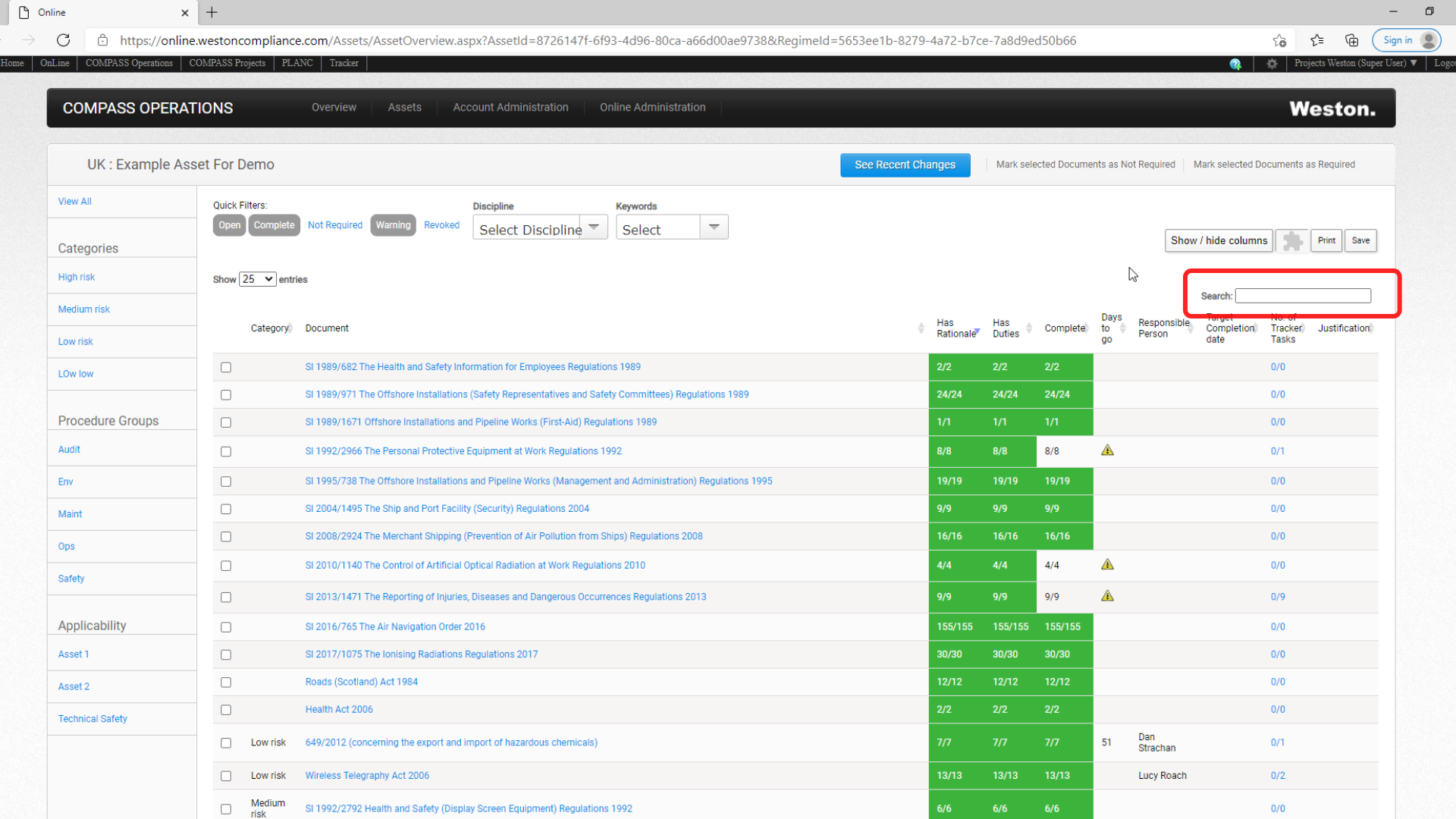
21) The search function allows you to search by date or keyword.
(3:43)
22) For example, search for "2001" will bring up all legislation with that date.

(3:50)
23) The keyword "Radiation" will list all radiation-related legislation.

Here the button that leads to the Codify training platform can be place
Something like this: